Free creative tools

One scan.
Endless possibilities.

Create a QR code that connects your audience to your website, message, or next big idea. Make it your own with custom colors, shapes, and a logo.

Generate your QR code →
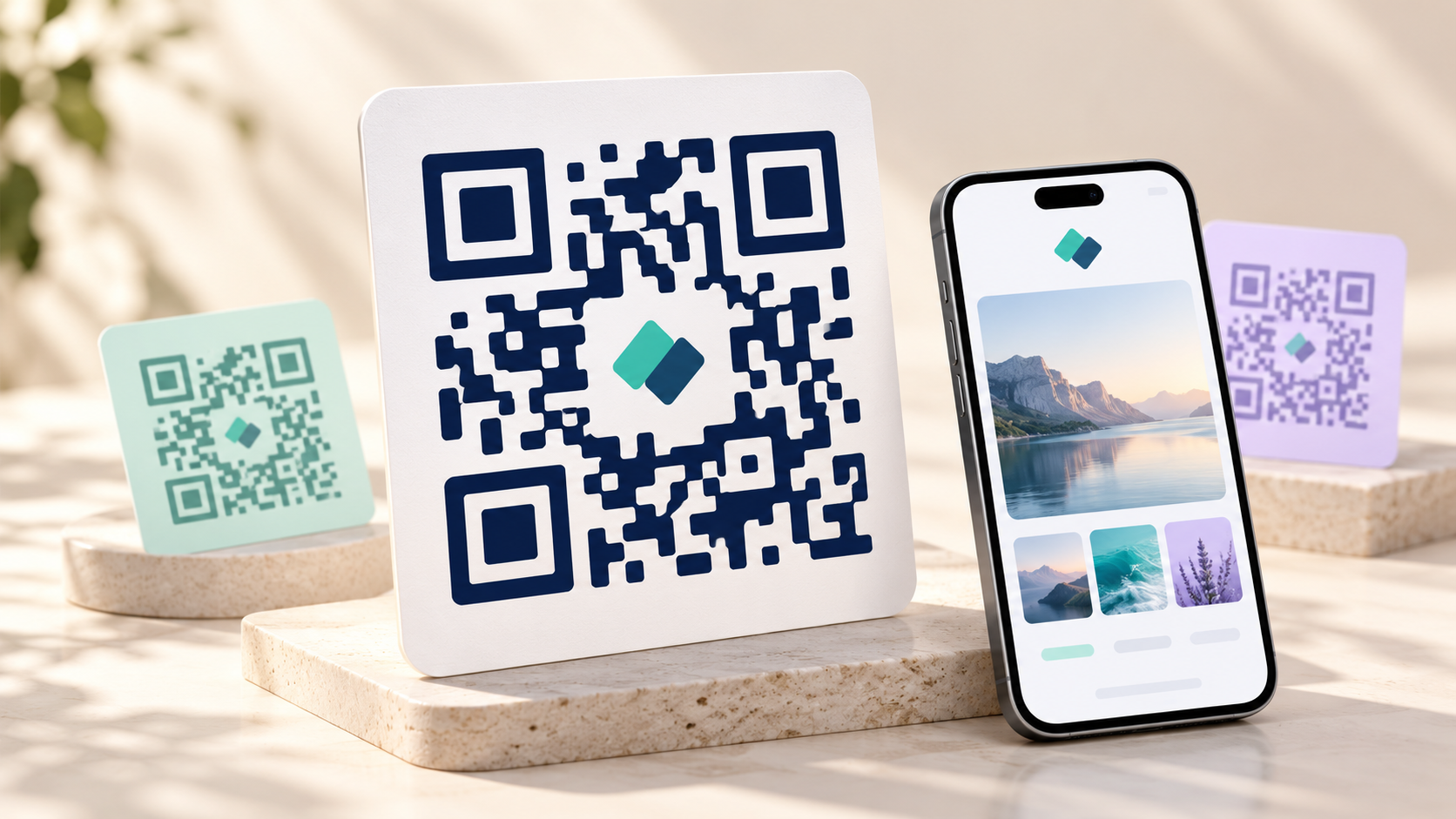
Custom QR cards and a smartphone illustrating a scan to a websiteCreate · Customize · Share
Your code, your style

Create your QR code

Add your content, choose a design, and download a code ready to share.

Create a QR code for
Design optionsDesign your QR code Body · Eye · Logo
Make it yours

A small code with a big brand personality

Choose colors and patterns that feel like your business. Add a logo, refine the corner shapes, and preview every change before you download. Keep your design clear and your foreground darker than its background so the code is easier to scan.

Customize your code →
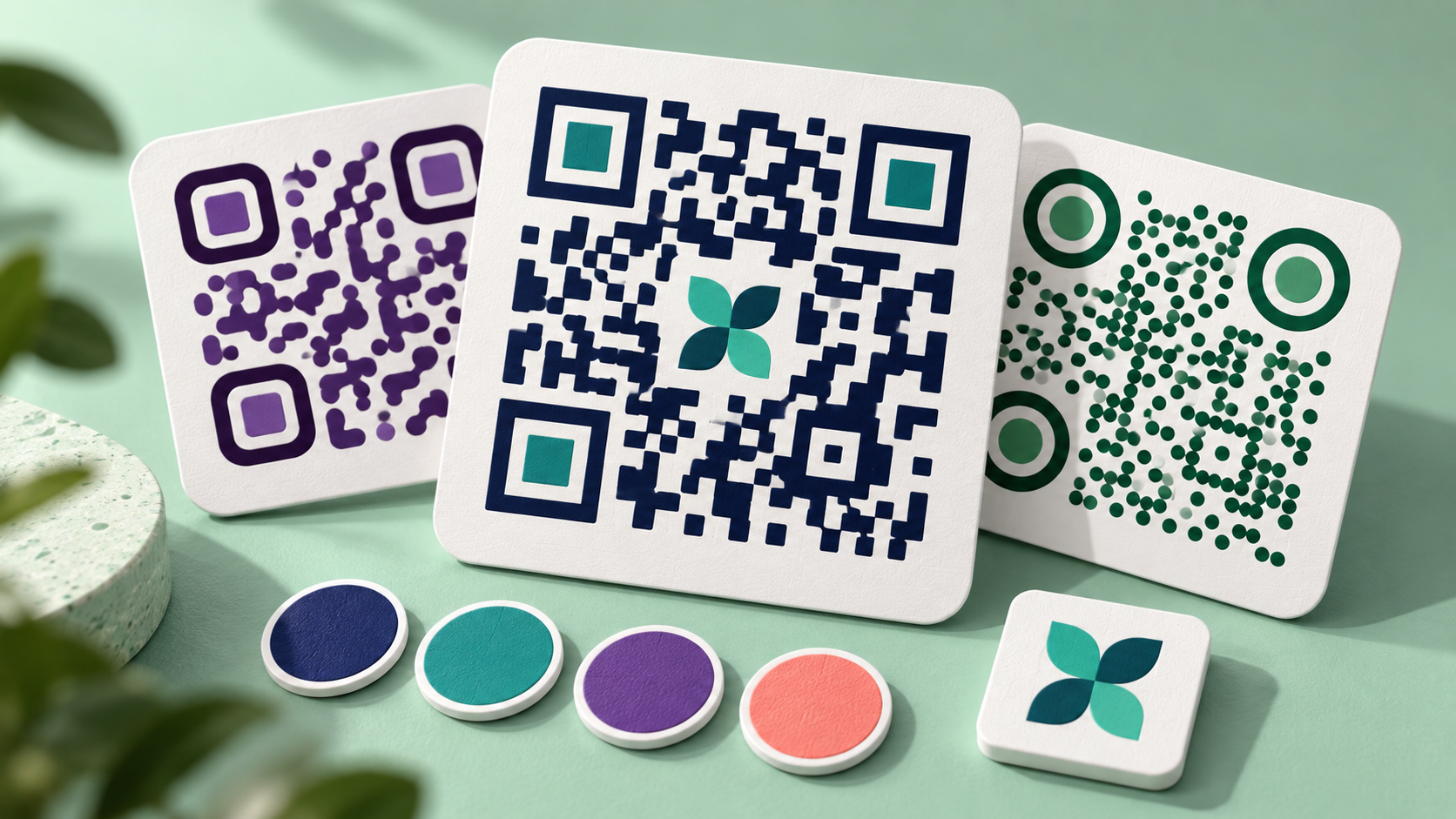
QR code designs with custom colors, body patterns, and a central brand logo
From print to digital

Give every scan a destination

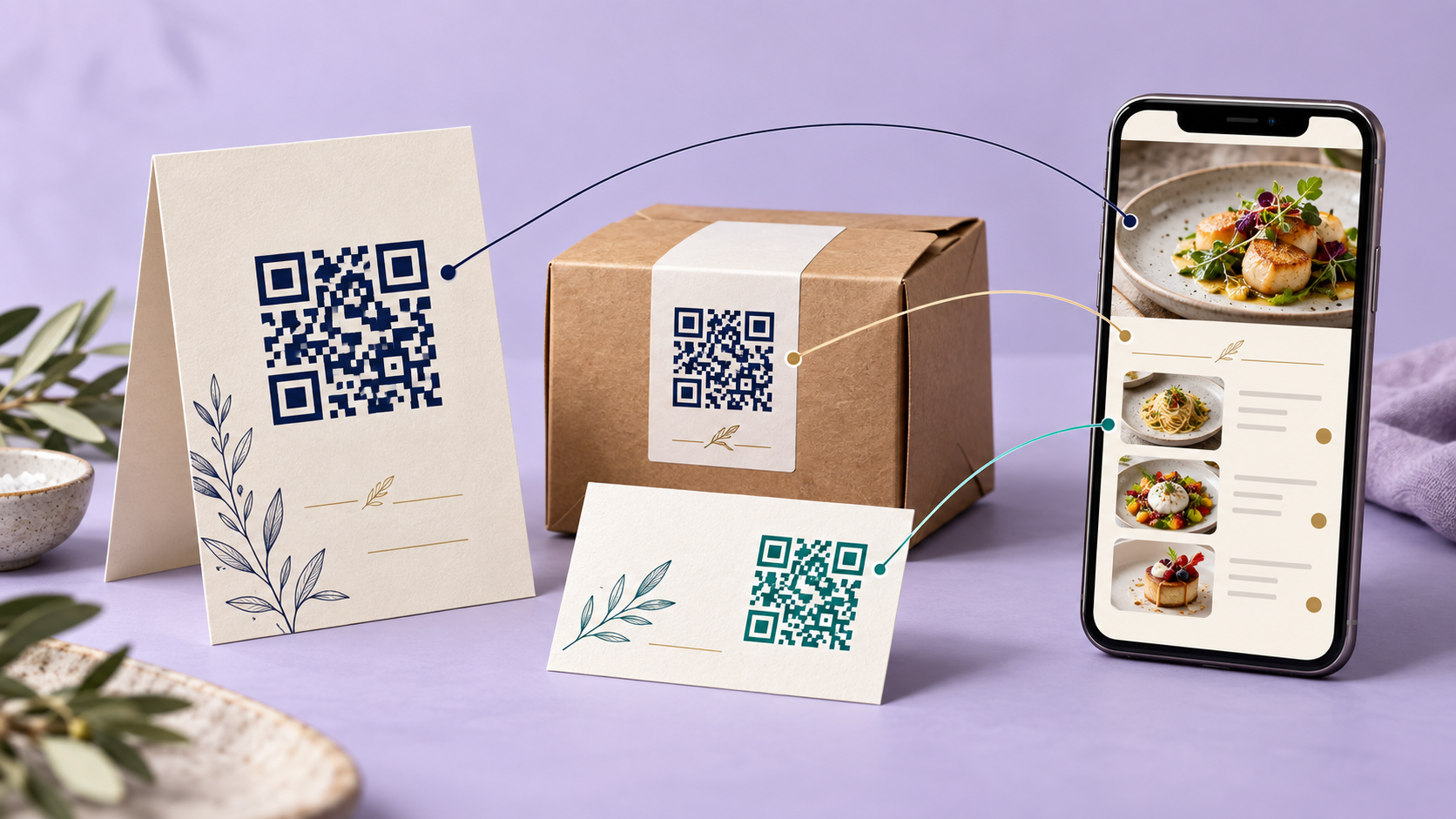
Link your menu, portfolio, store, or next event from a flyer, package, or business card. You can also share a message, email address, or Wi-Fi connection. Download a high-resolution image for your design, or choose SVG for artwork that scales cleanly.

Get Started in Studio →
QR codes on a menu, product packaging, and business card connecting to a phone
Smart QR design

A great QR experience starts with a clear code

Make every scan feel effortless. A thoughtful destination, a recognizable design, and a few simple checks help your QR code connect people to the right place.

Your code should reflect your brand while staying simple to recognize and scan. Choose clear colors, leave enough space around the pattern, and keep any logo small.

Before sharing, always scan the downloaded code and check that its destination works.

Tips for a better QR code

  1. Destination

    Give every scan a clear purpose

    Link directly to the page your audience needs, such as a menu, booking page, or product details. Check that the destination opens correctly on a phone.

  2. Color

    Keep your contrast strong

    Use a dark foreground on a light background. If you add a gradient, keep both colors dark enough for the pattern to remain easy to distinguish.

  3. Spacing

    Leave room around the code

    Keep the quiet zone clear of text, artwork, and borders. This empty space helps a camera separate the QR pattern from the surrounding design.

  4. Branding

    Make your logo a subtle detail

    Choose a small, simple logo that complements the code. Use high error correction when adding a logo, and check the exported result rather than relying only on the preview.

  5. Export

    Choose the right file for the job

    Use PNG for digital layouts and SVG when you need artwork that scales for print. Keep the code large enough to scan comfortably at its intended viewing distance.

  6. Final check

    Test before you share

    Scan your downloaded code with more than one phone. For printed materials, test a sample at the final size and check that your destination is still available.

Got questions?

Frequently Asked Questions

Everything you need to know about creating, customizing,
and sharing your QR code.

Is this QR code generator free?

Yes. You can create, customize, and download your QR code without signing in.

What can I put in a QR code?

Choose a website URL, text message, email address, or Wi-Fi connection. For a menu, video, or document, use the public URL where that content is hosted.

Can I add my logo and brand colors?

Yes. Use the Body tab for colors and patterns, the Eye tab for corner shapes, and the Logo tab to upload a small image. High error correction is recommended when adding a logo.

Which download format should I choose?

PNG is useful for most digital designs, JPEG is convenient for image workflows, and SVG stays crisp when resized for print. Export size applies to PNG and JPEG.

Will my QR code expire?

The static code itself does not expire. A website code will keep working as long as the destination URL remains available. To change its destination, create and distribute a new code.

How do I make sure my QR code scans?

Keep a dark foreground on a light background, leave a clear quiet zone around the code, and avoid oversized logos. Test the downloaded code on multiple phones and at the intended printed size.

Is my content uploaded to a server?

The generator creates the QR code in your browser. Your entered content and uploaded logo are not sent to a QR generation service.